The workbook import moves a whole financial life in one file: every account (credit cards and loans included), years of transactions with their transfers, and your categories. You don't build the file yourself. You hand your old app's export to the AI assistant you already use, with a prompt we wrote for you, and upload what it gives back.
Step by step
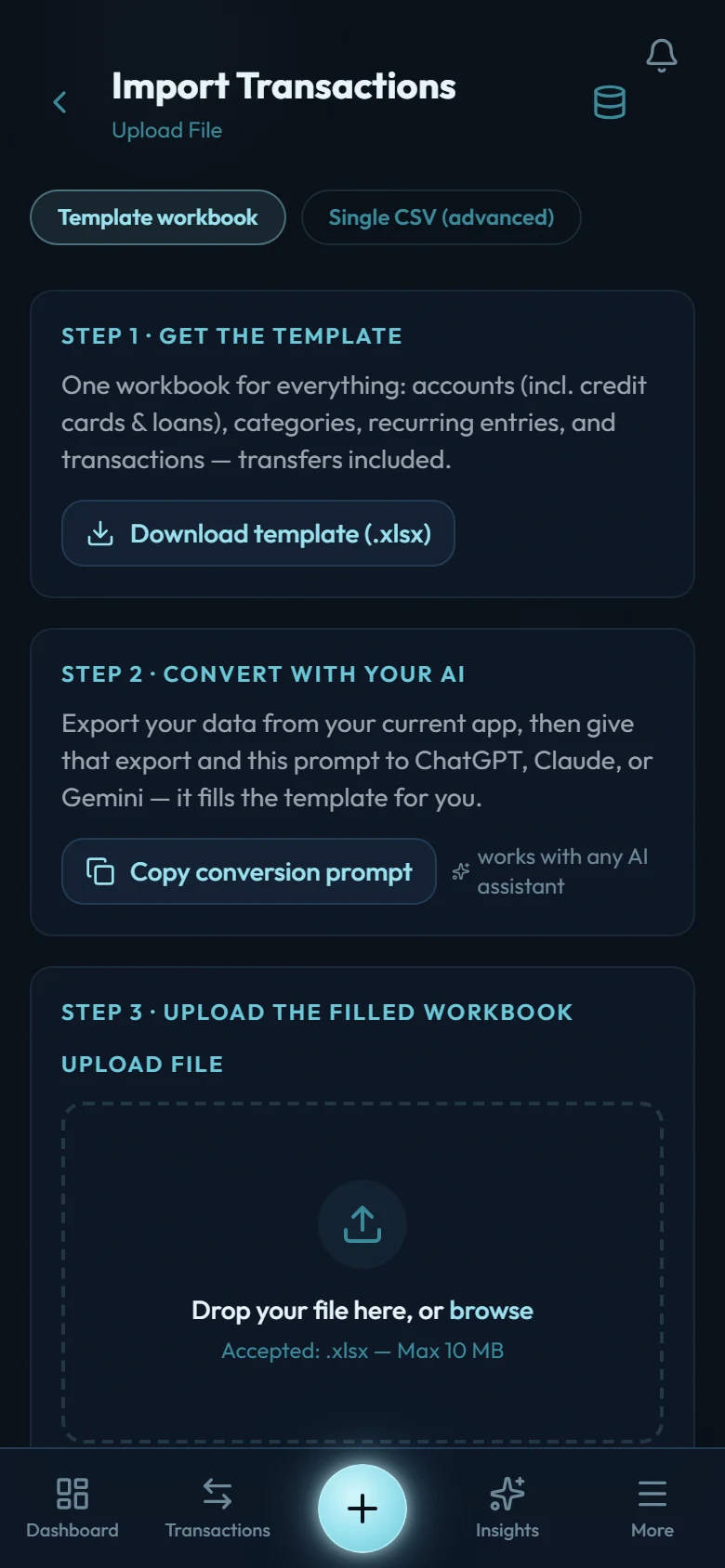
Export from your old app
Any format it offers: CSV, Excel, a zip of several files. You don't need to clean it up.
Copy the conversion prompt
Go to Settings → Import from Other Apps and copy the prompt. You can also read it in full there, or download it as a text file. Give it to ChatGPT, Claude, or Gemini together with your export.
Answer one question
Before producing the file, the AI asks what each account shows right now in your old app. It's skippable, but it's worth the minute: your answers become the balances the import checks itself against, so a conversion mistake surfaces on the preview instead of in your net worth. Card statement and due days aren't asked here any more — set those on the card itself, whenever suits you.
Upload the workbook it returns
The preview forecasts exactly what will import: per-account ending balances, the categories it will create, and anything it refuses or holds, each with a reason. Compare the balances against your old app before you press the button.
Import
Accounts are created first with their opening balances, then categories, then transactions. The result screen shows what landed, what needs a category, and anything held for you to finish in the app.
What comes across, and what doesn't
Comes across: your accounts with starting balances, every transaction including transfers, and your categories. Categories are built from each row's own Category cell; "Transport > Fuel" creates the parent and the child.
What doesn't: budgets, goals, saved rules, receipt photos, credit-card limits, card statement and due days, and the time of day on transactions. A split purchase arrives as its separate parts rather than one grouped entry. Recurring payments aren't read from the file, and they aren't detected from your history either — create the ones you want under Upcoming → Rules. Reading them out of imported history is planned for a later release. Budgets and goals start fresh on purpose: with your history in place, a new budget reads your real spending from day one.
Two things are held rather than imported:
- A transfer between accounts in different currencies. The file can only carry the amount that left one side; the ledger also needs the amount that arrived on the other. These rows are parked and named in the preview — after importing, record each one in the app with both amounts. Parked rows stay skipped if you re-upload, so nothing double-counts.
- Accounts held in crypto, gold, or other non-currency units. Leave them out of the file and create them in the app, where they carry their own units and prices.
A loan arrives as its name, its type, and the amount owed. That is deliberate: exports don't carry reliable payment schedules, and a wrong schedule is worse than none. So an imported loan is set to manual: you record the payments and the interest yourself, and nothing is calculated for you. A loan can stay that way for good. If you'd rather the app did the arithmetic, open the account, use Edit account, and set How do you want to track it? to Scheduled. It asks for the rate and the term, then works out the interest, the instalment and a payoff date.
Safety rails
One file carries up to 20,000 transaction rows. If yours is bigger, the wizard says so the moment it reads the file, with the row count, before anything is sent. Split the Transactions sheet by year and import the files one after the other; the second file reuses the accounts and categories the first one created, and no row imports twice.
One exception to "re-uploading is safe": if you edit a figure in the workbook and upload it again, the corrected row is added alongside the original, because the import has no way to know the two are the same purchase. Undo the import first, then upload the fixed file. The same applies to flipping the day/month toggle for ambiguous dates on the preview screen — the preview warns you when that is about to happen.
Your data and the AI
The conversion happens inside the AI assistant you choose. That is a third-party service under its own terms, outside Wealth Mutant and outside our privacy policy — leave out anything you wouldn't share with it. Wealth Mutant itself only ever receives the finished workbook you upload.
On the trial: the trial holds 500 transactions, and a full migration is usually bigger than that. The import refuses cleanly before writing anything, so you can test with a slice of your history and upload the full file after upgrading. Anything already imported is skipped.
If your AI replies with text instead of a file
Some assistants can't attach files and answer with CSV blocks instead. Download the empty template from the import page: its tabs match those blocks. Save each block as a .csv and open it in Excel or Google Sheets (opening splits the columns; pasting raw text lands everything in column A). Copy the rows into the matching tab starting at A2, save as .xlsx, and upload that.
The template's README carries the same prompt and instructions, so it also works as the starting point if you'd rather fill everything in by hand.
Have a file that doesn't look like any of this?
The prompt handles it. A one-off CSV, a wallet app's spreadsheet, a hand-kept ledger: the AI restructures whatever you give it into the workbook shape.
One case has a better tool. To fill a gap in a single account from a bank statement, use Catch-up on that account's page — it compares the statement against what's already recorded and imports only what's missing.