Guide
Bring your sheet into Wealth Mutant
If you have kept a sheet for a month or a year, you do not have to type it in again. Wealth Mutant reads an .xlsx workbook with an Accounts tab and a Transactions tab, shows you what it will import, and only then imports it.
Nothing connects to your bank: the app reads only the file you upload.
Which sheet this works for
Any of our three free templates works as it is, because their Accounts and Transactions tabs are laid out exactly the way the app reads them. Your own sheet works too, if you give it the same two tabs with the same column names, in the same order, starting in cell A1. The next section lists them.
If your sheet looks different, the app has another way in. Under Settings, then Import from Other Apps, it gives you a prompt you can hand to an AI assistant with your old export, and the assistant writes the workbook for you. That route is described in the help article below. This guide is about a sheet that is already in the layout.
The columns, in order
Each tab starts in cell A1, with these names in its first row, in this order. A column marked "must be filled" needs a value on every row; the others can stay empty.
- Accounts: Name (must be filled), Type (must be filled), Opening Balance, Opening Date, Currency, Expected Ending Balance.
- Transactions: Date (must be filled), Type (must be filled), Amount (must be filled), Account (must be filled), Transfer Account, Category, Description, Notes, Tags.
An account's Type is one of these: Cash, Checking, Savings, Wallet, Investment, Retirement, Insurance, Real Estate, Vehicle, Money lent, Other, Credit Card, Loan, Overdraft, Other liability. Capital or small letters both work.
A transaction's Type is income, expense or transfer. A transfer names the account the money left under Account, and the account it went to under Transfer Account.
The quickest way is to download one of the templates below and paste your rows under its top row.
The steps, from the trial to Import
- Open the trial. Start the free trial and sign in. No card is needed to try it.
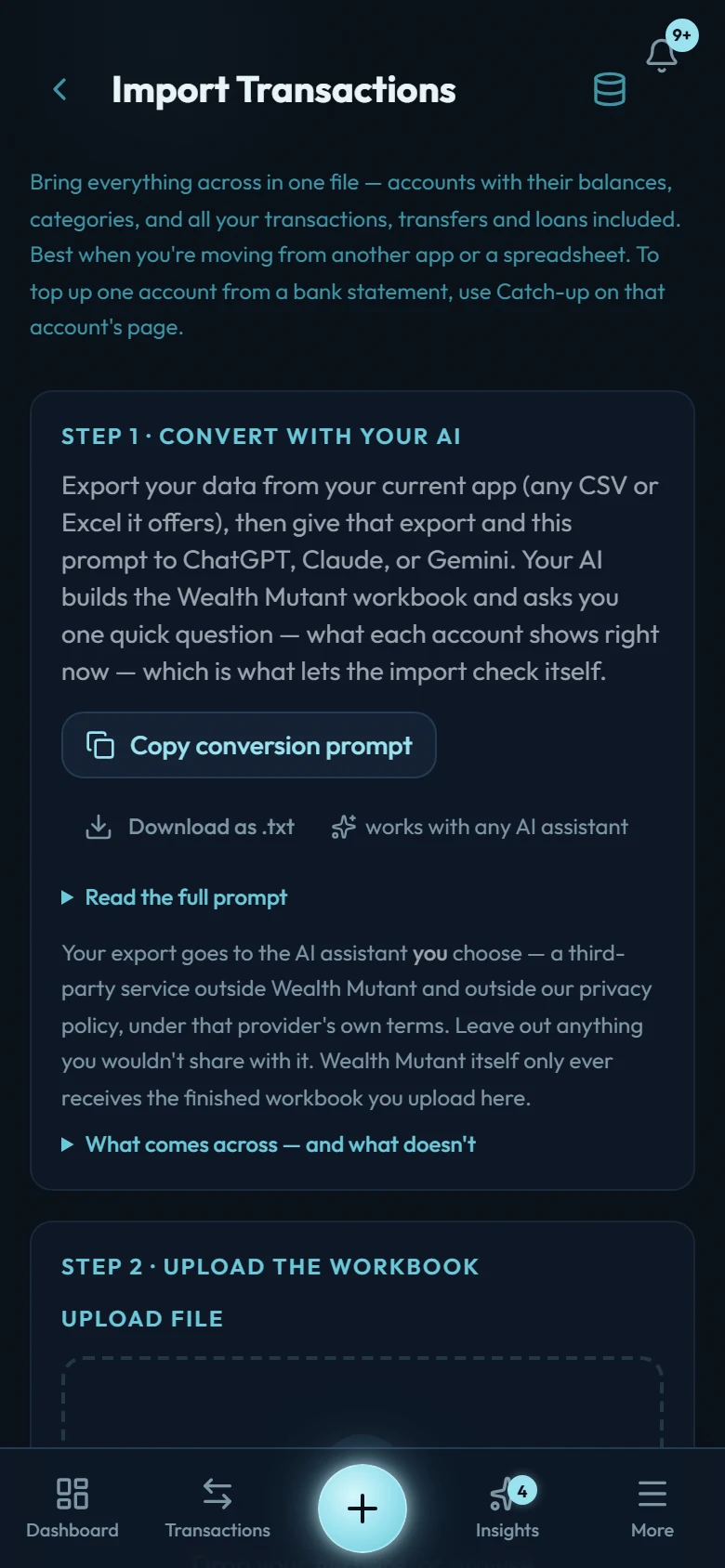
- Go to Settings, then Import from Other Apps. On the Import page there are two cards. Step 1 is for converting an export with your AI. A sheet that is already in the layout skips it and goes to Step 2, Upload the workbook.
- Upload the .xlsx file. Choose the file. The app reads the tab named Accounts and the tab named Transactions. It does not read any other tab, so a Budget, Summary or Start here tab can stay in the file.
- Read the preview. Before anything is written, the preview shows what will import: each account with the balance it would end on, the categories it will create, and any row it refuses or holds, each with a reason. If a date could be read two ways, the preview asks you which one you meant.
- Check it against your sheet. Compare the ending balances with what your sheet says. If you filled the Expected Ending Balance column, as our templates do, the preview tells you for each account whether it matches. A difference is the thing to fix before you go on.
- Press Import. The app creates the accounts with their opening balances, then the categories, then the transactions. The result screen shows what landed and anything that needs a category.
The limits
- Only .xlsx files import. A file saved as .xls or .csv is refused, so keep the sheet in .xlsx.
- A file can be up to 10 MB and hold up to 20,000 transaction rows. If yours is bigger, the Import page says so as soon as it reads the file. Split the Transactions tab by year and import the files one after the other.
- The trial holds 500 transactions. A longer history is refused before anything is written, so you can try with a slice and upload the whole file after you buy. Anything already imported is skipped.
- Dates are written as year, month, day, like 2026-10-01. Real date cells work too.
- Amounts are positive numbers with a dot for the decimal and no thousands separator. The Type column says which way the money went: income, expense or transfer.
- What you owe on a card or a loan is a negative opening balance on the Accounts tab.
What comes across, and what does not
Comes across: your accounts with their starting balances, every transaction including transfers, and your categories.
Does not come across: budgets, goals, saved rules, receipt photos, credit card limits, card statement and due days, and the time of day on a transaction. Recurring payments are not read from the file, so you create those in the app. A split purchase arrives as its separate parts.
Budgets and goals start fresh on purpose. With your history in place, a new budget reads your real spending from day one.
Two things are held, not imported: a transfer between accounts in different currencies, and an account held in crypto, gold or another non-currency unit. The preview names them, and you record them in the app.
A loan arrives as its name, its type and the amount owed, set to manual. You record its payments yourself, or switch it to scheduled in the app, which asks for the rate and the term.
If something looks wrong
Duplicates are skipped, so uploading the same file twice, or an overlapping one, imports nothing twice. If an import stops partway, upload the same file again and it carries on where it stopped.
Every import can be undone for 30 days. Under Import history on the same Settings page, press Undo and confirm. That removes the imported transactions and the accounts and categories the import created, when nothing else uses them.
One thing to know: if you change a figure in the sheet and upload it again, the corrected row is added beside the original, because the app cannot tell they are the same purchase. Undo the import first, then upload the fixed file.
The three free templates
Each one is laid out to import as it is.
More detail
The help article is the full reference for the import: Migrate with the Template Workbook.
Try it with your own sheet
Wealth Mutant is a personal finance app. Budgeting is one feature, beside cards and loans, net worth, money per hour, goals, Future Self and the 9-level Mutation Path. You note each purchase yourself in a few seconds, a small daily habit that makes you notice, and no bank login is ever shared. You pay for it once.