Free template
Monthly Budget Template
A budget for one month that you keep by hand. You plan the month, write down each purchase, and the sheet adds it all up. Download it as an .xlsx file for Excel, Google Sheets, Numbers or LibreOffice.
No email and no sign-up. The file runs on your own computer and works without Wealth Mutant.
wealth-mutant-monthly-budget.xlsx
.xlsx · 16 KB · One workbook with 5 tabs.
How to open it in Excel, Google Sheets, Numbers or LibreOffice
What it is, and who it suits
This is a budget for one month. On the Budget tab you type the month and a planned amount for each line of income and spending. On the Transactions tab you write down each purchase as it happens. The Budget tab then adds up what came in, what went out and what is left, line by line.
The Month review tab comes last. It asks the four questions of kakeibo, a Japanese way of keeping a household ledger, and shows the number behind each one.
It suits you if you want to see one month clearly, you are happy to write down purchases yourself, and you like owning your file. It works for one person or a whole household, in any currency.
It does not suit you if you want purchases to arrive on their own from your bank. It is also the wrong tool if you want several months side by side, cards with due dates and interest, or your net worth over time. A sheet can hold all of those, but you would be building them yourself.
See every tab before you download
The tables below are the file's own tabs, filled with its worked month: October 2026, with 29 example purchases and 3 accounts. The amounts are in US dollars. The numbers on this page come from the same source as the file, so the page and the download always agree.
Start here
The first tab is a one-page guide: what the file is, four steps to use it, and six good-to-know lines. There is nothing to fill in on it, so it has no table.
Budget
The cream cells in the file are the ones you type in: the month, the name of your savings account, and every Planned amount. Everything else is a formula that reads the Transactions tab.
| Set up | You type |
|---|---|
| Month (type any date in it) | October 2026 |
| First day of the month | 2026-10-01 |
| Last day of the month | 2026-10-31 |
| Savings account (its name on the Accounts tab) | Savings |
| Income | Planned | Received | Difference |
|---|---|---|---|
| Salary | 3,200.00 | 3,200.00 | 0.00 |
| Side income | 150.00 | 180.00 | 30.00 |
| Other income | 0.00 | 25.00 | 25.00 |
| Other income (a category not listed above) | 0.00 | 0.00 | 0.00 |
| Total income | 3,350.00 | 3,405.00 | 55.00 |
| Spending | Planned | Spent | Left | Used |
|---|---|---|---|---|
| Rent | 1,100.00 | 1,100.00 | 0.00 | 100% |
| Groceries | 350.00 | 354.70 | −4.70 | 101% |
| Utilities | 150.00 | 135.60 | 14.40 | 90% |
| Transport | 130.00 | 119.20 | 10.80 | 92% |
| Eating out | 120.00 | 132.75 | −12.75 | 111% |
| Health | 80.00 | 49.99 | 30.01 | 62% |
| Subscriptions | 27.00 | 26.48 | 0.52 | 98% |
| Fun | 80.00 | 42.50 | 37.50 | 53% |
| Clothing | 100.00 | 65.00 | 35.00 | 65% |
| Gifts | 50.00 | 35.00 | 15.00 | 70% |
| Other spending (a category not listed above) | 0.00 | 0.00 | 0.00 | |
| Total spending | 2,187.00 | 2,061.22 | 125.78 | 94% |
| Saving | Planned | Saved | Left |
|---|---|---|---|
| Moved into your savings account | 800.00 | 500.00 | 300.00 |
| Where the month stands | Amount |
|---|---|
| Left to plan (planned income - planned spending - planned saving) | 363.00 |
| Left so far (income received - spent - saved) | 843.78 |
| Rows on the Transactions tab dated in this month | 29 |
Transactions
One row per purchase. These nine columns, in this order, are the layout Wealth Mutant imports. Dates are real dates, shown year first.
| Date | Type | Amount | Account | Transfer Account | Category | Description | Notes | Tags |
|---|---|---|---|---|---|---|---|---|
| 2026-10-01 | expense | 1,100.00 | Everyday Checking | Rent | October rent | |||
| 2026-10-02 | income | 3,200.00 | Everyday Checking | Salary | Monthly pay | |||
| 2026-10-02 | transfer | 400.00 | Everyday Checking | Savings | Moved to savings on payday | |||
| 2026-10-03 | expense | 84.30 | Credit Card | Groceries | Weekly shop | |||
| 2026-10-05 | expense | 10.99 | Credit Card | Subscriptions | Music | |||
| 2026-10-06 | expense | 62.10 | Everyday Checking | Utilities | Electricity | |||
| 2026-10-07 | expense | 48.00 | Everyday Checking | Transport | Fuel | |||
| 2026-10-08 | expense | 24.60 | Credit Card | Eating out | Lunch with a friend | friends | ||
| 2026-10-09 | expense | 45.00 | Everyday Checking | Utilities | Internet | |||
| 2026-10-10 | expense | 92.15 | Credit Card | Groceries | Weekly shop | |||
| 2026-10-12 | expense | 19.99 | Everyday Checking | Health | Pharmacy | |||
| 2026-10-13 | expense | 15.49 | Credit Card | Subscriptions | Streaming | |||
| 2026-10-14 | expense | 30.00 | Everyday Checking | Transport | Monthly bus pass | |||
| 2026-10-15 | expense | 38.90 | Credit Card | Eating out | Dinner out | Our anniversary | family | |
| 2026-10-16 | income | 180.00 | Everyday Checking | Side income | Freelance job | |||
| 2026-10-17 | expense | 28.00 | Credit Card | Fun | Cinema | |||
| 2026-10-18 | expense | 76.40 | Credit Card | Groceries | Weekly shop | |||
| 2026-10-19 | expense | 65.00 | Credit Card | Clothing | Walking shoes | |||
| 2026-10-20 | expense | 28.50 | Everyday Checking | Utilities | Water | |||
| 2026-10-21 | expense | 41.20 | Everyday Checking | Transport | Fuel | |||
| 2026-10-22 | expense | 17.25 | Credit Card | Eating out | Coffee and a sandwich | |||
| 2026-10-23 | expense | 35.00 | Everyday Checking | Gifts | Birthday present | family | ||
| 2026-10-24 | expense | 14.50 | Credit Card | Fun | Paperback | |||
| 2026-10-25 | expense | 101.85 | Credit Card | Groceries | Weekly shop | |||
| 2026-10-26 | transfer | 450.00 | Everyday Checking | Credit Card | Paid off last month's card balance | |||
| 2026-10-27 | expense | 30.00 | Everyday Checking | Health | Check-up fee | |||
| 2026-10-28 | income | 25.00 | Everyday Checking | Other income | Card cashback | |||
| 2026-10-29 | expense | 52.00 | Credit Card | Eating out | Dinner out | |||
| 2026-10-30 | transfer | 100.00 | Everyday Checking | Savings | Extra to savings |
Accounts
One row per account, and what it held on the first day of the month. A card or a loan is a negative number: what you owe. The last column is what each account should end on, so you can check the file against your real balances.
| Name | Type | Opening Balance | Opening Date | Currency | Expected Ending Balance |
|---|---|---|---|---|---|
| Everyday Checking | checking | 2,400.00 | 2026-10-01 | 3,415.21 | |
| Savings | savings | 6,000.00 | 2026-10-01 | 6,500.00 | |
| Credit Card | credit_card | −450.00 | 2026-10-01 | −621.43 |
Month review
The four questions with the number behind each one. The answers are yours to write in the cream cells.
| The numbers | Amount |
|---|---|
| Income received | 3,405.00 |
| Spent | 2,061.22 |
| Saved (moved into your savings account) | 500.00 |
| Planned saving | 800.00 |
| Left over (income - spent - saved) | 843.78 |
| The four questions | Number | Your answer |
|---|---|---|
| How much money do I have? | 3,405.00 | You write here |
| How much money would I like to save? | 800.00 | You write here |
| How much money am I spending? | 2,061.22 | You write here |
| How can I improve? | Eating out | You write here |
How to use it in 5 steps
The first time takes about 10 minutes. After that, a purchase takes a few seconds to write down.
- Type in your accounts. On the Accounts tab, replace the examples with your own accounts and what each one held on the first day of your month. Write what you owe on a card or a loan as a negative number.
- Clear the examples. On the Transactions tab, delete the example rows but keep the top row and its column names exactly as they are.
- Plan the month. On the Budget tab, type the month in the first cream cell, the name of your savings account in the second, then a planned amount for each line. Left to plan shows how much money has no job yet.
- Write down each purchase. One row each: the date, the type (income, expense or transfer), the amount, the account and the category. The amount is always a positive number, and the type says which way the money went. Spell each category the way the Budget tab does.
- Review the month. At the end of the month, open Month review, read the numbers and answer the four questions in your own words.
To start the next month, type the new month in the first cream cell of the Budget tab. It only counts rows dated inside that month, so last month stays where it is. A card payment or a move to savings is a transfer. It is not spending, so write it as type transfer, with the account the money left and the account it went to.
Open it in Excel, Google Sheets, Numbers or LibreOffice
- Excel: double-click the file. If Excel opens it in Protected View, choose Enable Editing.
- Google Sheets: choose File, then Import, then Upload. Pick the file and choose Create new spreadsheet.
- Numbers: choose File, then Open, and pick the file.
- LibreOffice: choose File, then Open, and pick the file.
We recalculated the file in Excel before publishing it and checked every total against a separate sum. It uses only formulas that Google Sheets, Numbers and LibreOffice also run, but we have not looked at it in each of them. If a number looks wrong in one, tell us through the contact page.
What the formulas do, in plain words
Cream cells are yours to change. Everything else on the Budget and Month review tabs is a formula.
- The month. Type any date in the month and the sheet works out its first and last day.
- Received and Spent. Each line adds up the rows on Transactions whose category matches the line and whose date falls inside the month. An income line only looks at income rows, and a spending line only looks at expense rows.
- Other income and Other spending. A category you did not list is never lost. These two rows catch everything the named lines did not, so the totals always include every row.
- Left and Used. Left is planned minus spent, and it turns red when you are over plan. Used is spent as a share of planned, and it stays blank when nothing is planned for the line.
- Saved. This adds up the transfers into the account you named as your savings account.
- Left to plan and Left so far. Left to plan is planned income minus planned spending minus planned saving: the money with no job yet. Left so far is income received minus spent minus saved.
Transfers are not spending. A card payment and a move to savings never count in Spent. A purchase on a card counts on the day you buy it, which is how a kakeibo ledger does it, and not on the day you pay the card.
The file uses only formulas that Excel, Google Sheets and Numbers share, such as SUMIFS, COUNTIFS, INDEX, MATCH and IF. There are no macros, nothing is locked and no tab is hidden. The Budget tab reads the first 2,000 rows of Transactions.
The month review: four questions
Kakeibo's month-end review asks four questions. The Month review tab words them as the kakeibo guide on Chase UK's website does, and puts the number behind each one beside it.
- How much money do I have? The number is the income you received.
- How much money would I like to save? The number is the saving you planned.
- How much money am I spending? The number is the total you spent.
- How can I improve? The number is the name of the spending line furthest over its plan.
Each question has a cream cell for your answer, and two more boxes ask what you will keep doing and what you will change next month. Pick one change you can name. In the worked month, eating out ran $12.75 over its plan, so the change might be one fewer dinner out.
Where a sheet works well, and where it runs out
A sheet does some things better than an app. You can see every number and every formula, and you can change any of them. The file is yours, it opens in any spreadsheet program, and it will still open years from now. Writing each purchase down yourself is what makes a ledger work: it makes you look at the money.
If one month at a time is all you need, this sheet is enough. You can stop here and keep it.
Here is where a sheet runs out.
- Each month is its own plan. Comparing six months means building that comparison yourself.
- A sheet knows nothing about cards and loans. Due dates, interest and a payoff month are yours to add.
- It does not show your net worth over time.
- You do the upkeep. A category with a typo or a date in the wrong month sits there until you spot it, and a formula you overwrite stays overwritten.
The worked month is in dollars, and the file works in any currency
The example month uses US dollars. The file itself carries no currency sign, so type your own currency with the same layout: rupees, pounds, euros or anything else. The sums do not know which currency they hold.
Write amounts as plain numbers, with a dot for the decimal and no thousands separator. Dates are real date cells, shown year first as 2026-10-01, which every spreadsheet program reads the same way. If your program shows dates as day and month, that is only how it displays them.
When you outgrow it
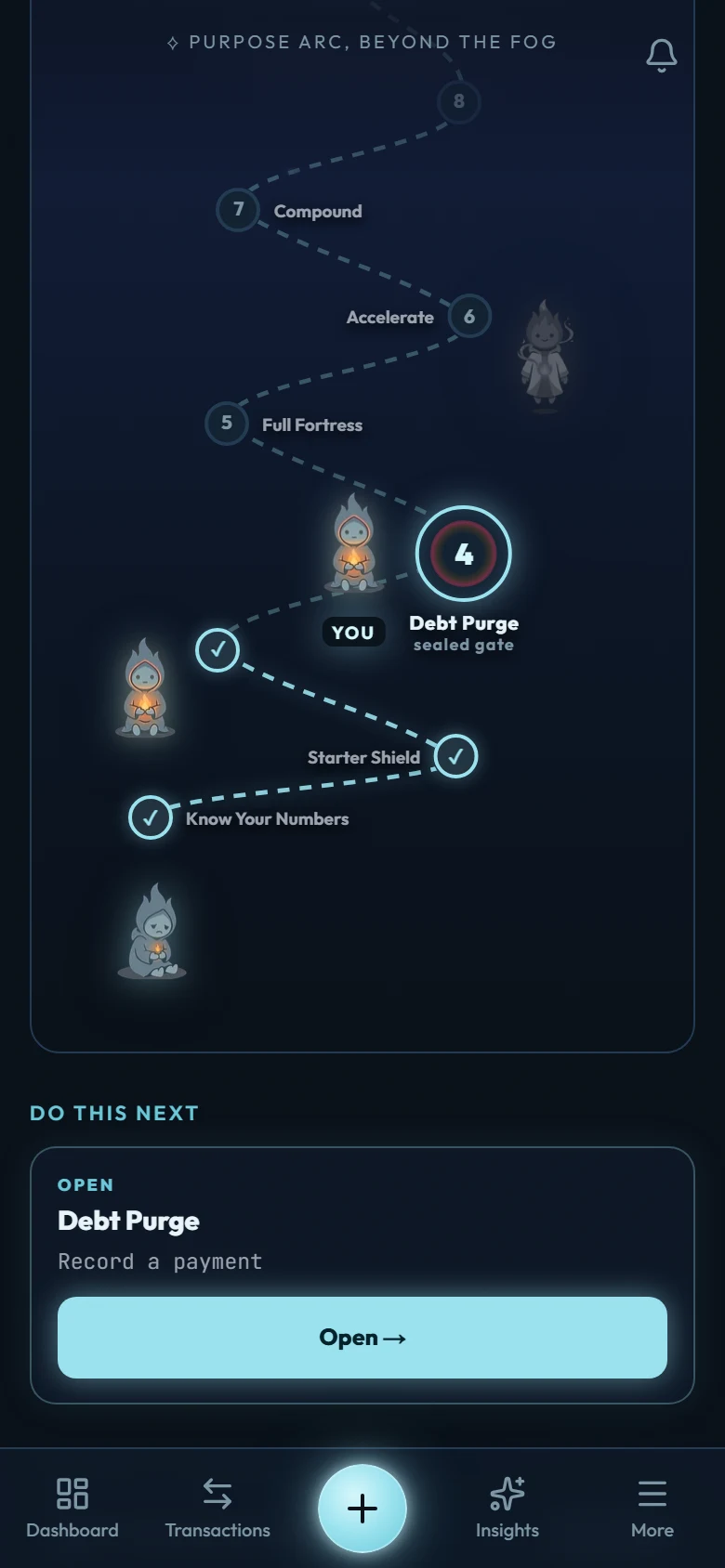
Some people never need more than this sheet. If you find you want more, it is usually one of three things: several months compared, a card or a loan tracked with its payoff month, or a way to see whether the habit is working.
Wealth Mutant is a personal finance app. Budgeting is one feature, beside cards and loans, net worth, money per hour, goals, Future Self and the 9-level Mutation Path. You note each purchase yourself in a few seconds, a small daily habit that makes you notice, and no bank login is ever shared. You pay for it once.
Take the number beside question 3 on the Month review tab: what you spent. Level 2 of the Mutation Path asks for that amount, saved. It is done when 1 month of your average spending sits in the accounts you count as your emergency fund. The app sizes the target from your own spending, with a first reading after your first complete month, settled once 3 months are in. In the worked month, that month of spending is $2,061.22, out of $3,405.00 received.
Bring the sheet into Wealth Mutant later
The Transactions and Accounts tabs are laid out exactly as the Wealth Mutant import reads them. Keep the top row and the column names as they are, and you can upload the file under Settings, then Import from Other Apps, check the preview and press Import. Your own month appears in the app with no retyping.
Two limits come with that. The Start here, Budget and Month review tabs are not read, and budgets and goals do not come across, so you set those up fresh in the app, where they read the spending you imported. And the trial holds 500 transactions, so a long history imports in full after you buy. Only .xlsx files import, so keep the file in that format.
The steps, the limits and the screens are in the guide: Bring your sheet into Wealth Mutant.
The help article on the template workbook has the full list of what comes across. Migrate with the Template Workbook.
Questions people ask
Is the monthly budget template really free?
Yes. There is no email form, no sign-up and no fee. The file works without Wealth Mutant, and you do not have to try the app to keep using it.
Can I use it in Google Sheets?
You can open it there. In Google Sheets choose File, then Import, then Upload, pick the downloaded file and choose Create new spreadsheet. The formulas are ones Google Sheets also runs.
Can I use it for a different month or another currency?
Yes to both. Type any date in the new month in the first cream cell of the Budget tab and the sheet counts only rows dated inside that month. The file carries no currency sign, so type amounts in your own currency.
What is a kakeibo budget template?
Kakeibo is a Japanese way of keeping a household ledger. You write down each purchase by hand and, at the end of the month, answer four questions about what you had, what you wanted to save, what you spent and how to improve. The Month review tab in this file is that review.
Can I keep more than one month in the same file?
Yes, up to 2,000 rows on the Transactions tab. The Budget tab shows one month at a time, whichever month you type in its first cream cell, so you change the month to look back.