To split a transaction, open it and tap Split beside the amount. Give each part (a leg) a category and an amount or a percentage, until the legs add up to the total. The transaction keeps its total, account and date; the legs only decide which categories the money counts toward.
Splitting a transaction
Open the transaction
Find it in your list and tap Edit.
Choose Split
The split editor opens with the stored amount.
Add 2 to 20 legs
Each leg gets a category and either an exact amount or a percentage.
Match the total
Legs must add up to the transaction total. The editor shows the remainder as you go.
Save
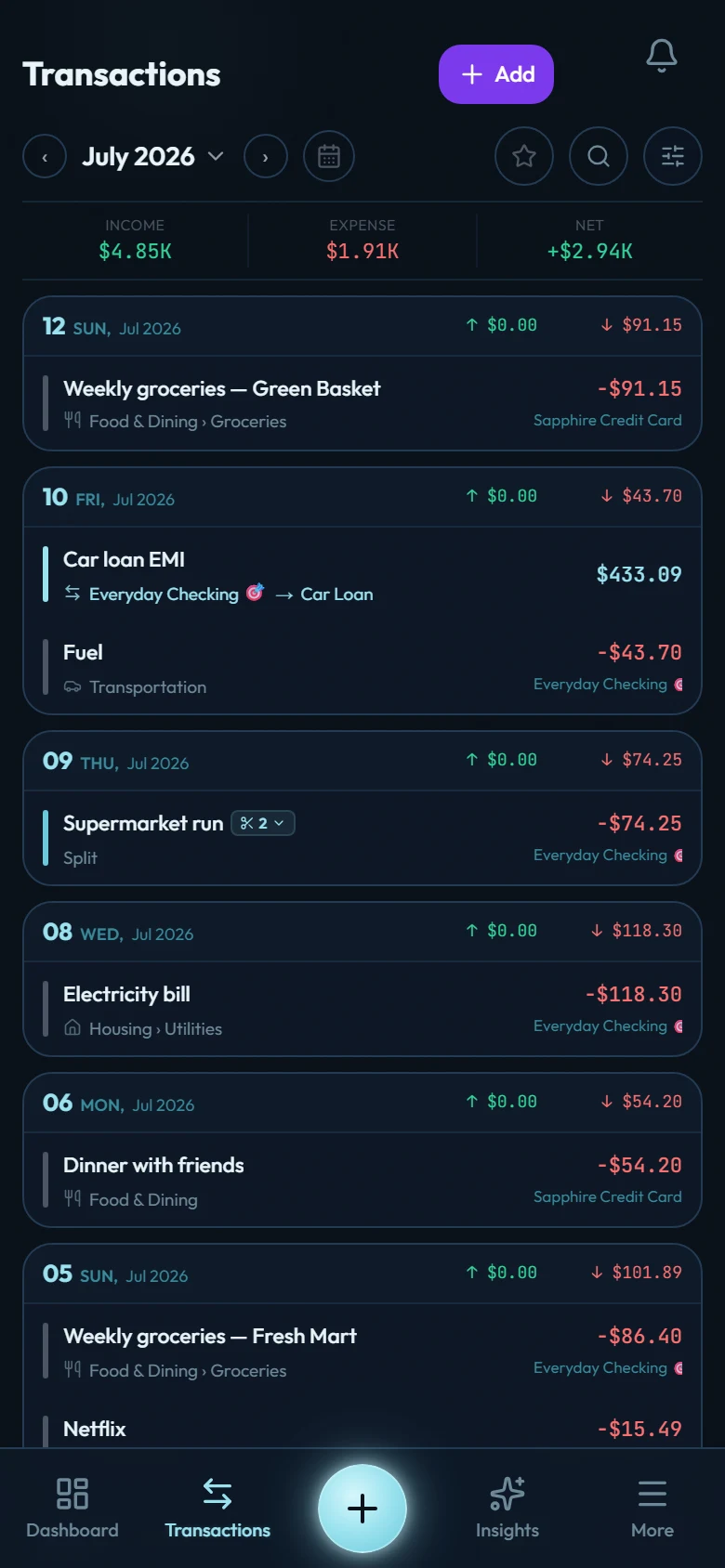
The transaction now shows a Split badge with a leg count. Tap it anywhere to expand the legs.
A few rules the editor enforces:
- Only expenses and income can be split, not transfers or opening balances.
- Leg categories match the transaction's type (no income categories on an expense).
- The parent transaction carries no category of its own once split; the legs own the attribution.
Where splits show up
Everywhere that counts categories understands splits: budgets, monthly summaries, reports, and insights all attribute each leg to its own category, and the AI chat's spending and category figures inherit that same split-aware math. Filtering your transaction list by a category also finds transactions that touch it through a split leg. (One nuance: if the AI chat lists an individual split transaction, it shows it as the single "Split" parent rather than breaking out each leg; the per-category totals it reports are still fully split-aware.)
Editing a split transaction
- Change the amount: the legs rescale proportionally, to the exact cent, so attribution never drifts from the total.
- Change the type: blocked while split (legs are category-typed). Unsplit first.
- Unsplit: removes the legs and leaves the transaction uncategorized so you can reassign it deliberately.
Split templates
If you split the same way repeatedly (say, a standing 60/30/10 supermarket pattern), save it as a template. Templates are percentage-based (they must total 100%), so one template works for any amount. Apply one from inside the split editor.