To change several transactions at once, turn on select mode on the Transactions screen, tap the ones you want, and use the bar that appears at the bottom: Category, Tags, Flag or Delete. Each bulk action works on up to 25 transactions.
Turning on select mode
- On a phone or tablet, press and hold a transaction for about half a second. Select mode starts with that one selected.
- With a mouse, click the select button (a ticked box) beside the calendar icon at the top of the list. Hover over it and it reads "Select multiple".
In select mode a tap selects or clears a row instead of opening it, and a tick in a circle marks each selected row. Select all shown picks every transaction on screen, up to the first 25.
To leave, tap the select button again, tap the × on the bar, or press Esc on a keyboard. Select mode works in the list view only.
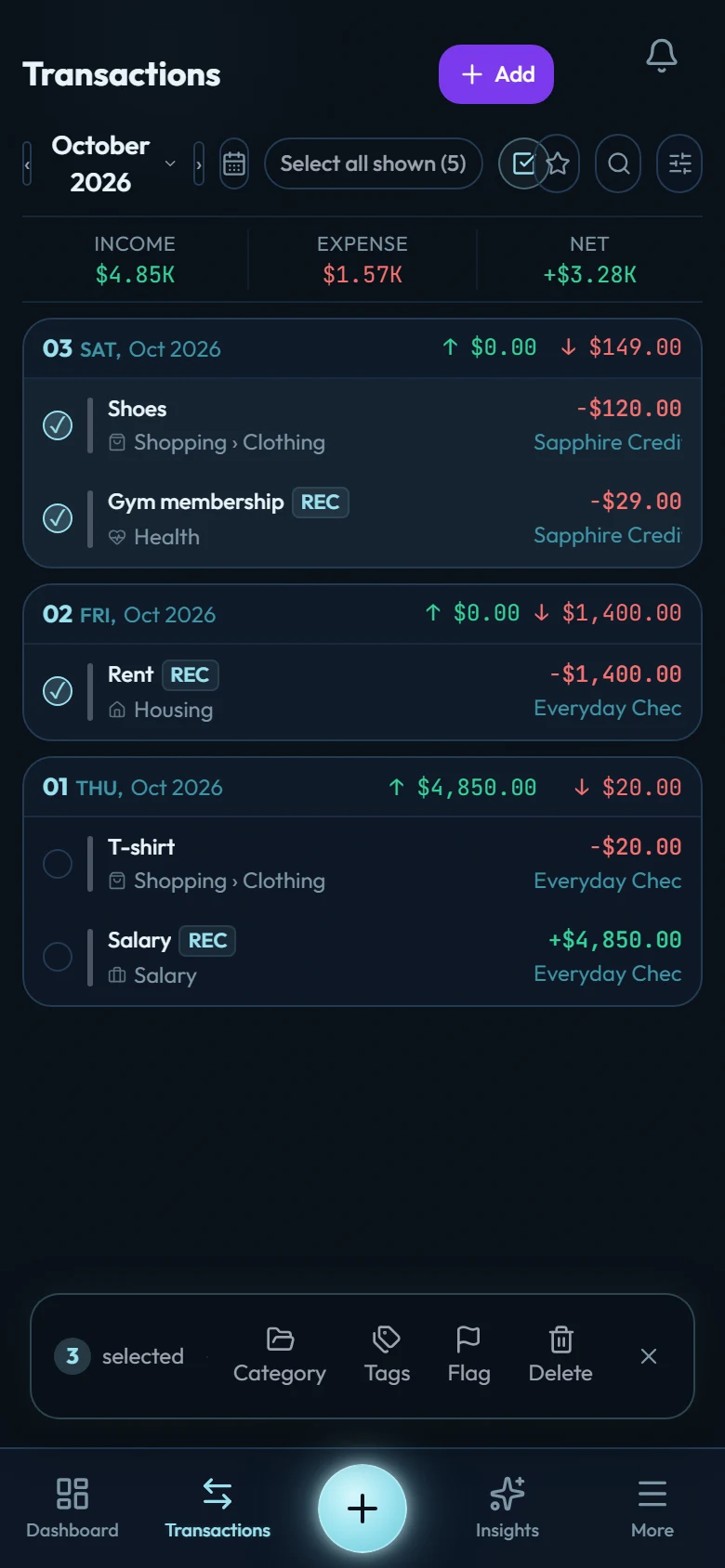
The 4 bulk actions
The bar shows how many transactions you've selected, then the 4 actions.
Category
Category opens "Re-categorize 3 transactions" (with your own count). Pick a category and tap Apply. Only categories of the selection's own type are offered, so you can't put an expense in an income category.
- A selection that mixes income and expenses can't be re-categorized in one go. The app asks you to "Select transactions of one type to change their category".
- Transfers in the selection are left alone, because transfers take no category.
- Split transactions are skipped too, because their categories live on their legs (the parts of the split). Open one to change it.
Tags
Choose Add or Remove, type the tags, and tap Apply. Adding keeps the tags each transaction already has. Removing takes off only the tags you typed. A transaction holds up to 10 tags, and the app tells you if any were already full.
Flag
Pick one of the 6 flag colours, shown with your own names if you've set them in Settings → Flag labels, then tap Apply. To take flags off, pick the clear option and tap Clear flag.
Delete
Delete asks "Permanently delete 3 transactions?" and lists what will go: the dates, the money in and out, any transfers (both sides go), any splits (their legs go too) and any transactions that came from a repeat. It ends with "This is permanent — there is no undo for a bulk delete." To go ahead, tap Delete 3 permanently (again with your own count).
If a deleted transaction came from a repeat, its rule is paused and stays in your list. Resume it from More → Upcoming, on the Rules tab, when you're ready. Receipts attached to deleted transactions are removed by the daily clean-up described in Attaching a receipt.
What can be undone
None of the bulk actions has an Undo button. A category, tag or flag change can be reversed by selecting the same transactions and applying the old value. A bulk delete can't be reversed.
To delete one transaction with a way back, open it and delete it there. Ordinary entries then get an Undo for 8 seconds.
Limits
- 25 transactions per action. Selecting a 26th shows "Bulk actions work on up to 25 transactions at a time".
- A transaction that is still saving can't be selected.
- Changing a filter, the search or the view clears the selection, so you never act on rows you can't see.