Besides the list, the Transactions screen has 3 calendar views of your money over time: a month calendar, a year view and a multi-year view. Tap the calendar icon beside the month name to switch from the list to the calendar, and tap it again to come back.
Moving between the views
Month calendar
On Transactions, tap the calendar icon next to the month name. The arrows either side of the month change the month.
Year view
In the month calendar, tap Year view. You see the 12 months of one year, and the arrows change the year. Tap a month to open its calendar.
Multi-year
In the year view, tap Multi-year for one row per year. Tap a year to open its year view.
The Month view and Year view buttons step back in, and the calendar icon takes you straight back to the list from any of the three.
Reading the month calendar
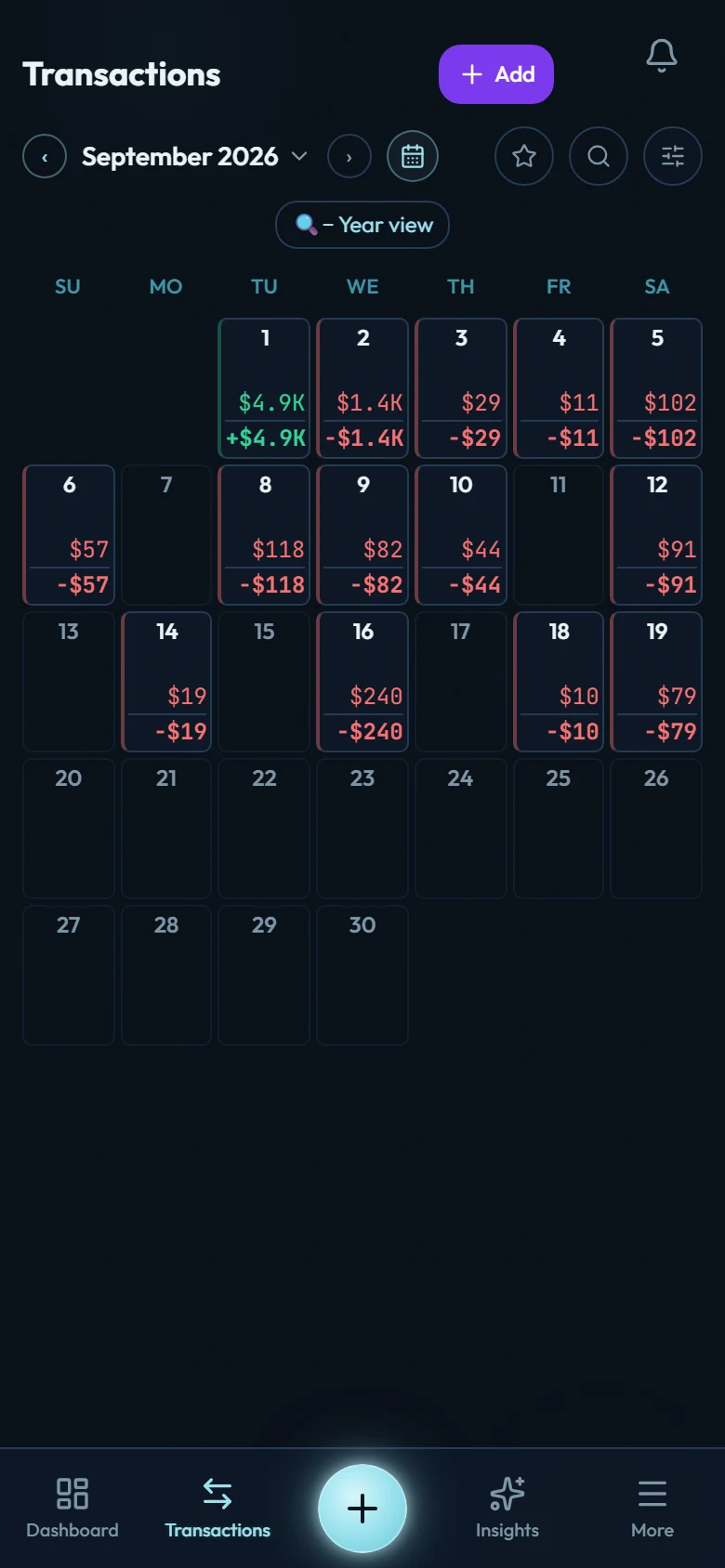
Each day with entries shows up to 3 figures: money in (green), money out (red) and, under a thin line, the net for the day in bold, with a + or a − in front. To fit a phone screen, amounts under 1,000 are rounded to whole units and bigger ones are shortened, so 1,540 shows as 1.5K. The exact figures are one tap away.
- Today has a cyan outline.
- A day's left edge is green when its net is zero or positive, and red when it is negative.
- A day with nothing recorded stays blank and doesn't open.
The figures follow the same rules as the totals above your list. Opening balances never count as money in or out. Transfers between your own accounts don't either, unless the account receiving the money has Count transfers as expenses turned on.
Tapping a day
Tap a day with entries and a panel slides up with the date, the day's money in and out, and every transaction from that day. The arrows step to the day before or after. Tap a transaction to open it, or tap Close.
Reading the year view
The year view opens with 3 totals for the year shown: YTD Income, YTD Expense and YTD Net. Below them, each month has a card with money in (↑), money out (↓) and its net in bold. The current month has a cyan outline, and months with nothing recorded are dimmed.
The arrows go back as far as your first year with entries and forward to next year.
Reading the multi-year view
The header reads All Years. At the top are Lifetime Income, Lifetime Expense and Lifetime Net, the totals across every year you have recorded. Below them is one row per year, newest first, back to your first year with entries and never fewer than the last 3 years. A year with nothing recorded shows a dash.
Filters and search
Filters and search apply to the list view only. The calendar, year and multi-year views always show every transaction in the period, so a month total there can differ from a filtered list. When a filter is on, the calendar says so: "Calendar shows every transaction in this period. Your filters apply to the list view."