To attach a receipt, open the transaction form and tap the camera icon at the end of the Description row. Choose a photo or a PDF, then save the transaction. The receipt is kept with that transaction, and only your account can open it.
Attach a receipt
Open the form
Tap the + button for a new transaction, or tap one in your list to edit it. Receipts work on both.
Tap the camera icon
It sits at the right end of the Description row.
Choose the file
The form shows a preview with the file's name and size.
Save
Tap Save (or Update when you are editing). The receipt uploads as the transaction saves, and back in the list the transaction shows a paperclip.
Which files work
- JPEG, PNG, WebP or PDF, up to 5 MB.
- Photos are resized before they upload, to at most 1,200 pixels wide. A large phone photo is fine as long as the resized copy is under 5 MB, and the form shows both sizes.
- A PDF uploads as it is, so the PDF itself must be 5 MB or less.
- A HEIC photo is turned away with a note asking for a JPEG or PNG.
- The app reads a file's contents to tell what it is, so a file renamed to look like a photo is refused.
View, replace or remove a receipt
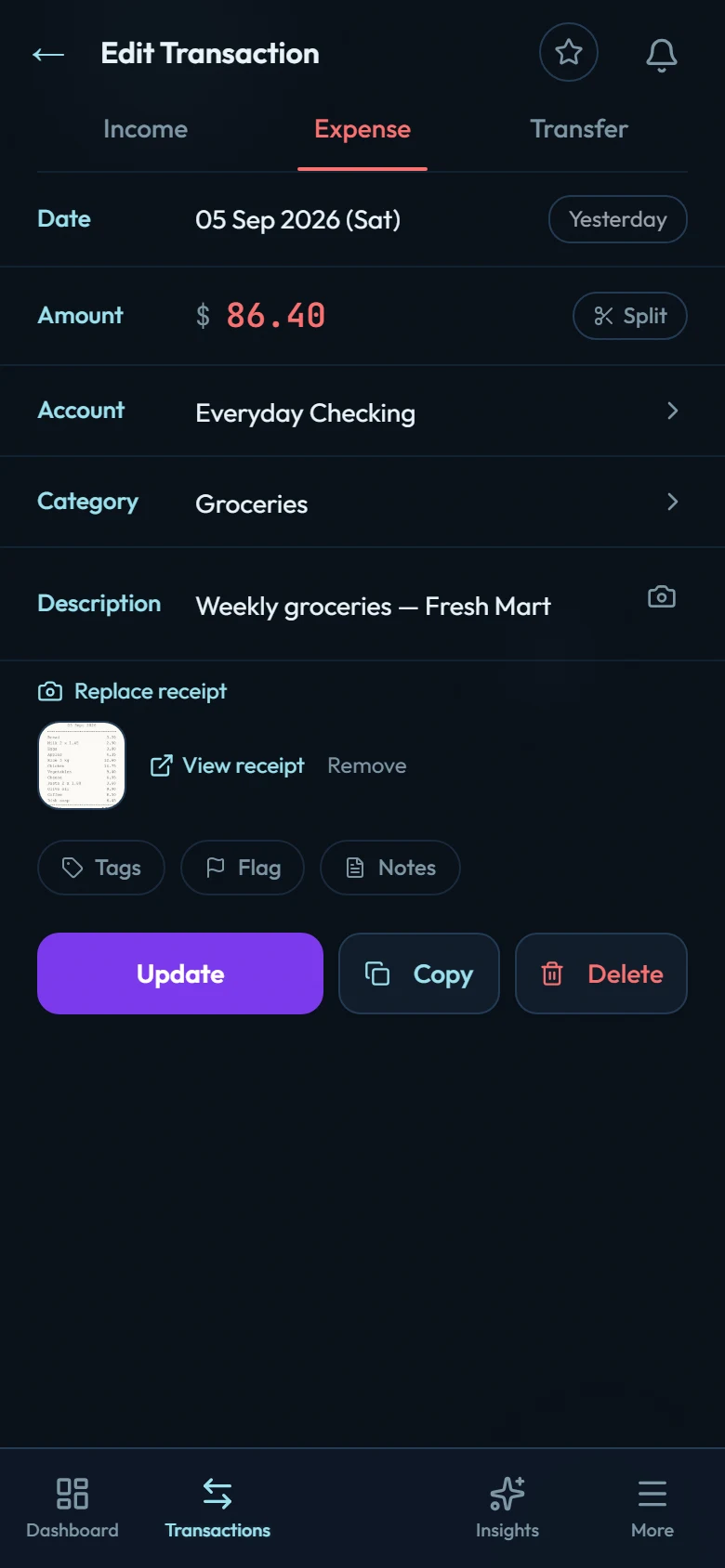
Open the transaction. Under the Description row you'll see the receipt: a thumbnail for a photo, a document icon for a PDF.
- View receipt opens it in a new tab.
- To replace it, tap Replace receipt (or the camera icon) and choose the new file. The form notes that it replaces the current receipt. Tap Update, and the old file is deleted once the new one is in place.
- Remove takes it off. The app tells you "Receipt will be removed when you save", and it goes when you tap Update.
If a receipt doesn't attach
A transaction you save while offline waits in the app and syncs when you're back online, but its receipt can't wait with it. The app says so at the time. Open the transaction once you're online and attach the receipt again.
If the upload fails after the transaction has saved, you'll see "Saved, but the receipt didn't attach" with the reason. The transaction is safe; open it and try the receipt again.
Who can see your receipts
Receipts are kept in private storage, in a folder tied to your account. Only your signed-in account can read, add or delete files there.
The app makes a fresh viewing link each time you open the transaction, and that link stops working after 90 seconds. If View receipt stops opening because the form has been open a while, close the transaction and open it again.
The data export (CSV or ZIP) does not include receipt files.
When you delete a transaction
Delete a single transaction and tap Undo within 8 seconds, and it comes back with its receipt. Undo is offered for ordinary entries; transfers, splits, opening balances and loan-account entries don't have it.
Otherwise the receipt goes in a daily clean-up, which deletes any receipt file that no transaction points to once the file is more than 24 hours old. Transactions removed with bulk delete have no Undo, so their receipts go the same way.